Beta 8.0.16
🚀 Key Updates
AI Connect: your AI agent in ATAS ⭐️ for Ultra
Connect your desktop AI agent to ATAS: Claude, Codex, Cursor, and others. Use ready-made instructions, configured Skills, or write your own prompts for the agent.
The AI agent can help you set up your workspace, charts, levels, and alerts, write your own indicator, or even a module. Trading crypto? Analyze the market situation on a chart and backtest patterns.
You choose the agent, the model, and its subscription, while ATAS provides the integration through a built-in MCP server.
Script Editor: a developer console right in ATAS ⭐️ for Plus, Pro, Ultra
A built-in console for editing indicators. You can add your own code in C# or ATAS Script, and the indicator appears on the chart right away. You can also connect your desktop agent (Claude, Codex, Cursor, and others) via AI Connect and vibe-code analytical tools right in ATAS. Open the console from the chart's context menu.
Instrument Studio — build your own asset for analysis ⭐️ for Ultra
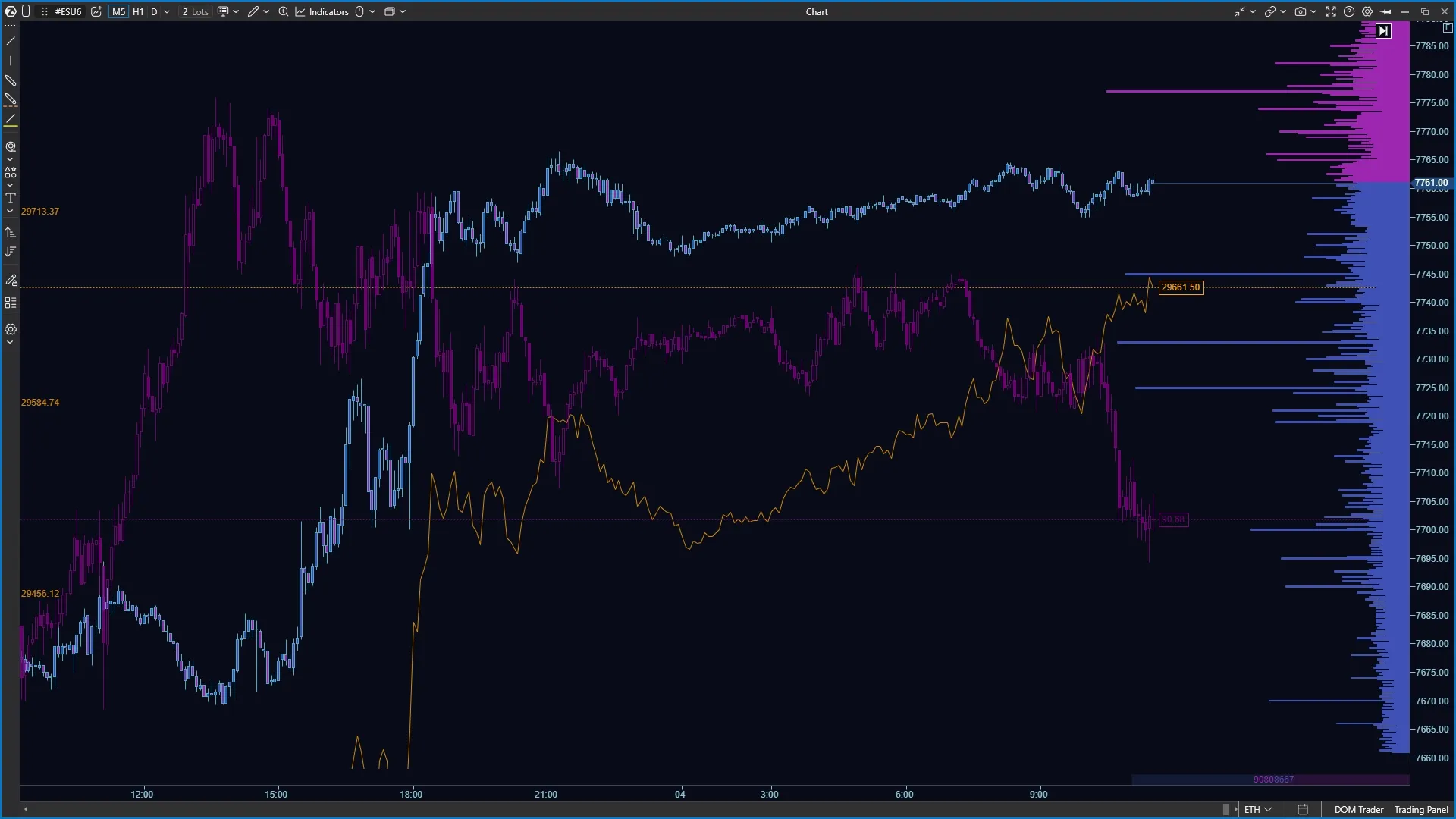
The builder creates a new synthetic instrument from one or more real instruments, according to rules you define. You can work with it like any other instrument: open it on a chart, in Heatmap, the DOM, Smart Tape, etc.
☝🏻 A synthetic instrument “lives” only in your account and is not sent to the exchange. It is suitable for modeling market situations, but not for working with orders.
What you can build:
A combined asset from several sources. For example, an averaged Bitcoin from Binance, Bybit, and Kraken on one chart.
A spread. For example, Brent – WTI can be viewed as a regular chart.
A filtered instrument. Keep only orders above a set size (for example, from 1 BTC) or those resting longer than N seconds in the DOM, and only large trades in the tape.
A duplicate of a real instrument with its own settings. For example, to compare it with the synthetic instrument.
☝🏻 Already available for ATAS Classic. Support for ATAS X is in development.
Options X-Ray: Hedge Pressure ⭐️ for Ultra
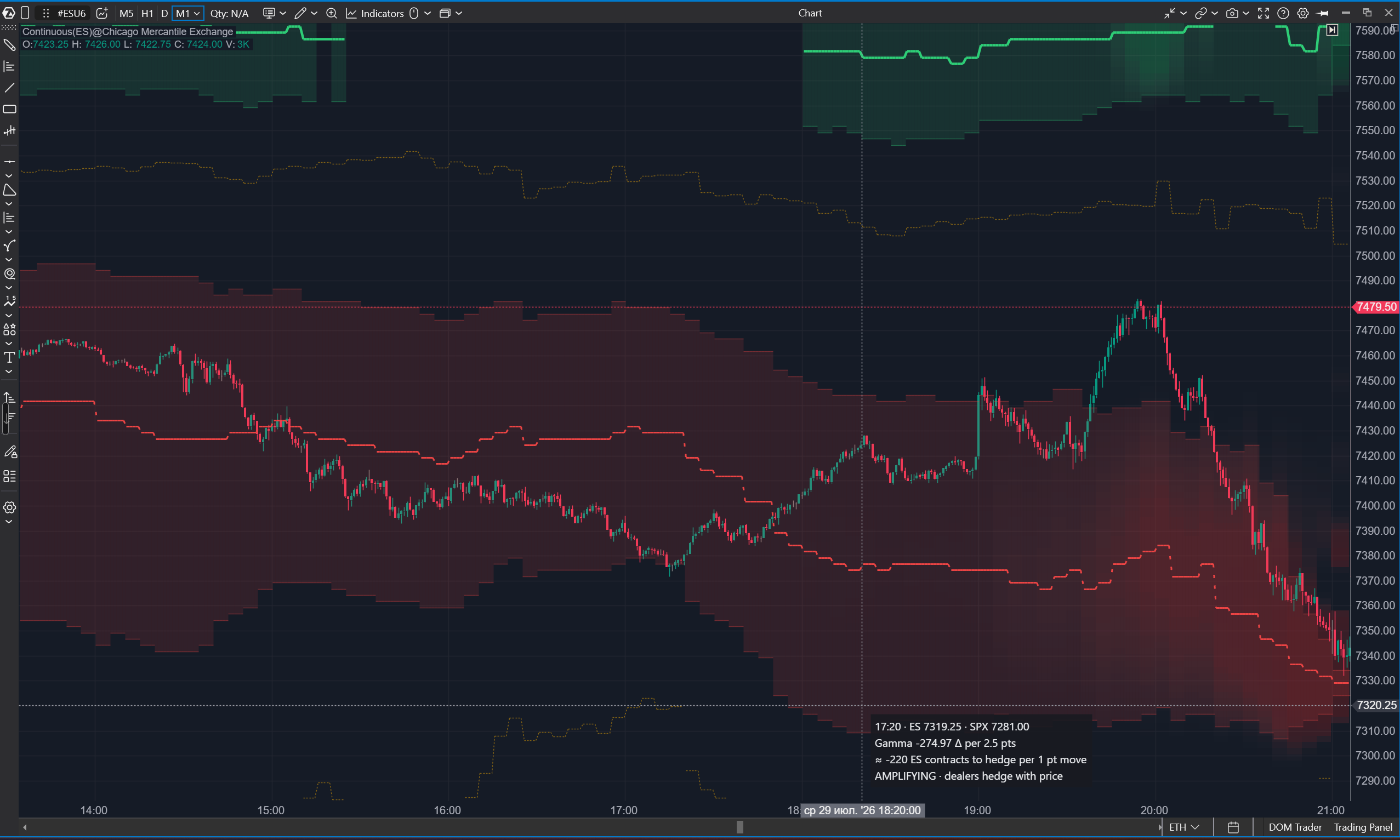
A new line-format indicator shows how the market makers' book on SPX options has changed since the start of the session. The indicator is easy to read:
The line moves in the direction of price: when price rises, market makers sell; when it falls, they buy. The hedge works against the move and can dampen impulses.
The line moves against price: when price rises, market makers are forced to buy more. The hedge works with the move and can accelerate it.
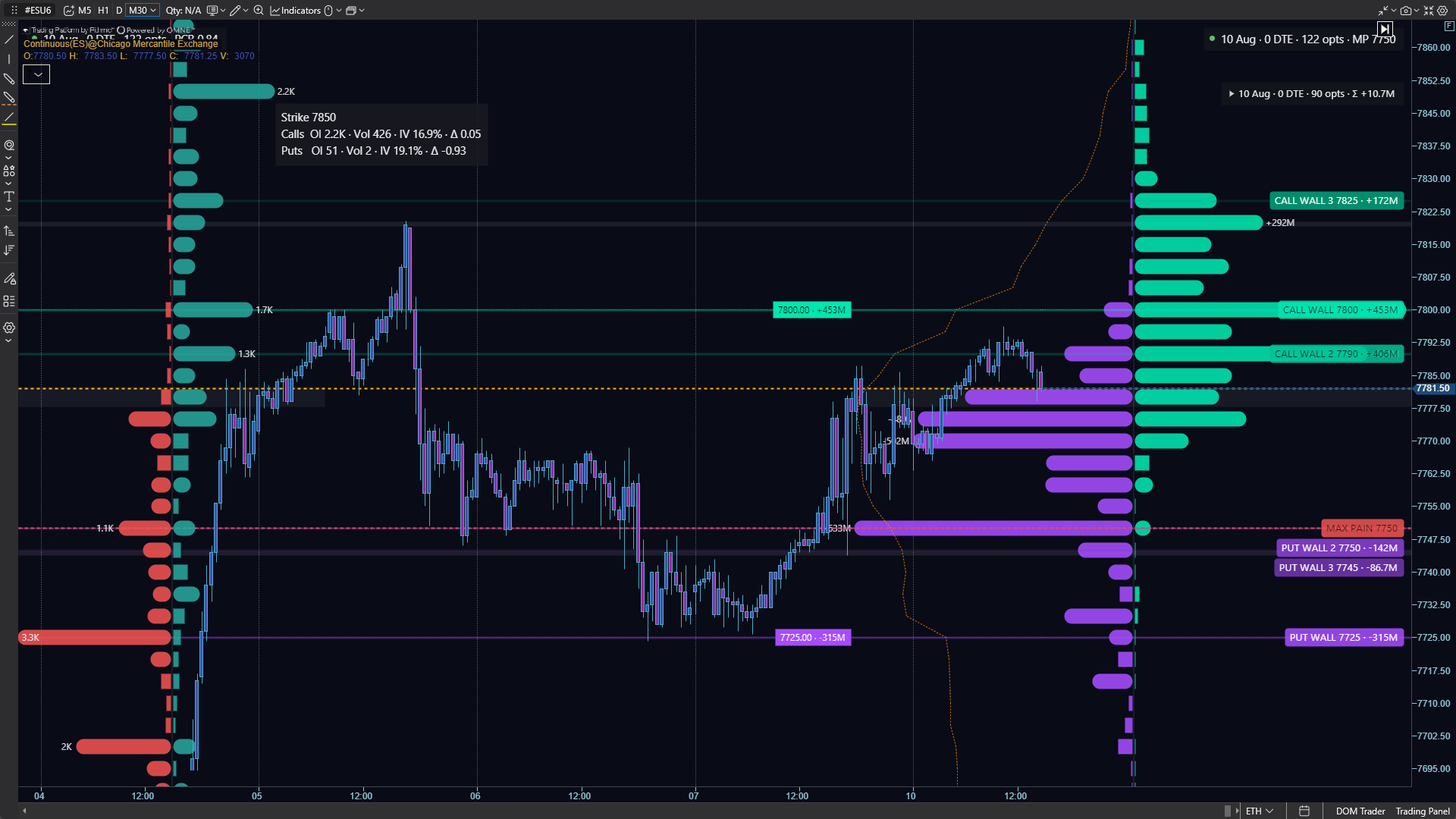
A great way to get started with 0DTE analysis after the Chain Suite tools.
Works on: ES, MES, SPX, SPY, US 500
Heatmap depth for dxFeed and crypto ⭐️ for Ultra
In Heatmap for dxFeed and crypto data, the Bubbles and DOM history now loads when the module opens — no need to wait for live data to accumulate. Depth: up to 12 hours by default (can be increased in settings up to 14 days).
MBO Bundle now with dxFeed data ⭐️ for Ultra
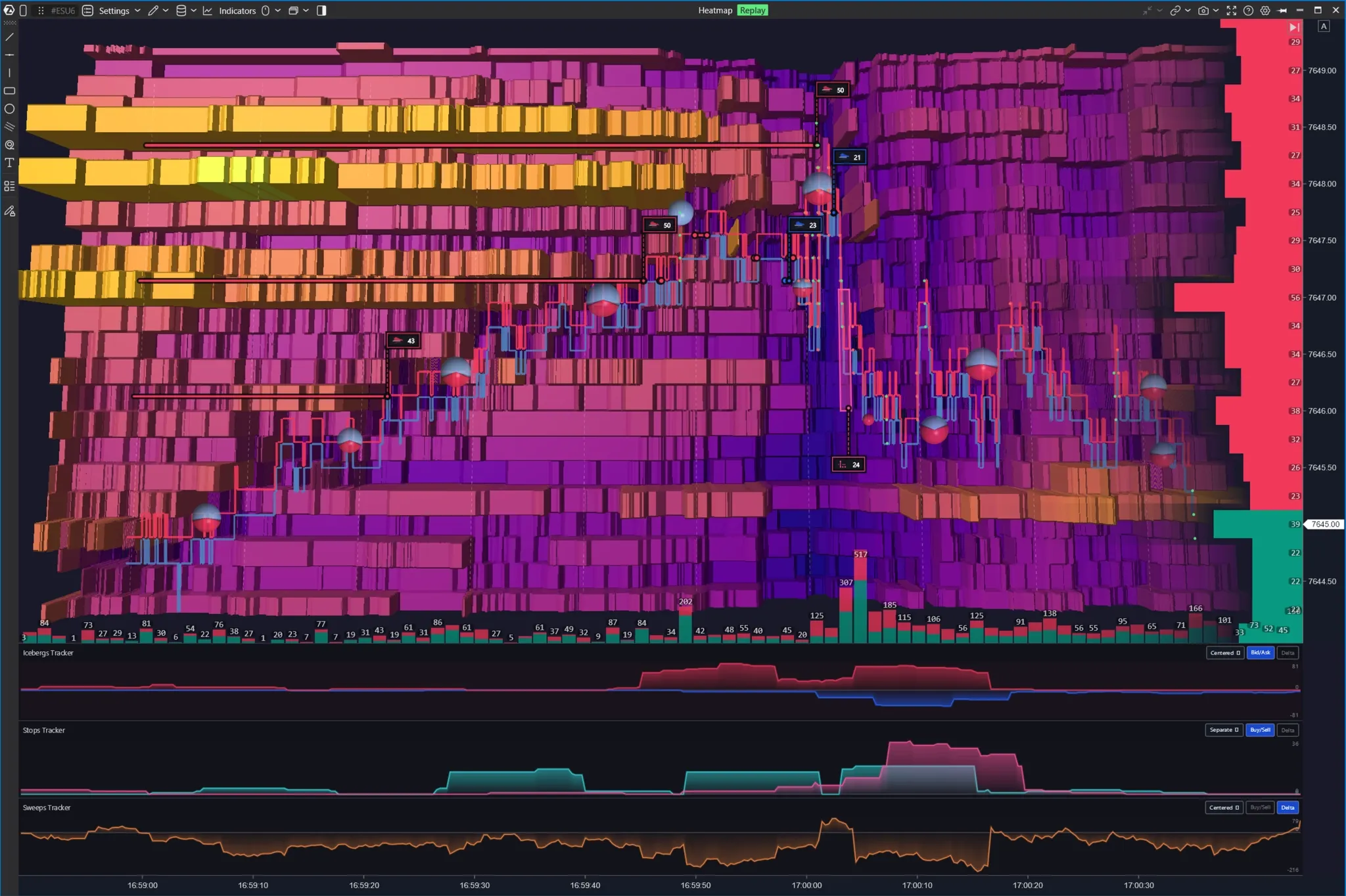
The Iceberg Tracker, Stop Runs Tracker, and Sweeps Tracker indicators now work with a dxFeed connection, not only with Rithmic.
☝🏻 At the end of November, the MBO Bundle will become a paid add-on. However, Ultra plan users can keep access to it at no extra charge — as long as the subscription's auto-renewal stays active.
Divergence indicator
A new indicator shows divergences between price and CVD, Open Interest, or RSI (the source is set in the indicator's settings). It compares swing peaks of price and the source (highs/lows), draws arrows on the chart, and can send alerts.
Volume Profile as a heatmap
The new display mode works in both the indicator and the Volume Profile & TPO drawing object. By default, it uses the palette, contrast, and other footprint settings.
A new settings group Profile. Peaks & Valleys highlights High-Volume Nodes (HVN) and Low-Volume Nodes (LVN) on the profile as lines — levels of high and low volume. To keep the profile from being cluttered with lines, set a sensitivity threshold. You can set an alert for when price touches a level.
Volume Profile & TPO: indicator context menu
Right-clicking the Volume Profile & TPO indicator now opens the profile's own menu, not the general chart menu. It includes commands that were previously available only through hotkeys or the settings window: Merge (+), Split (−), Split in periods (G), Mode, External period, Profile type, Drawing mode, Show, Settings.
The items and the Show submenu adapt to the current profile mode. Selecting a value or toggle applies immediately, without opening dialogs. The menu has two levels and is styled the same as the menus of other drawing objects. Right-clicking an empty area of the chart still opens the general chart menu, and hotkeys keep working.
Visible Range Volume Profile & TPO
A new drawing object from the Volume Analysis group rebuilds when you scroll and zoom. Zoom out to see the big picture across all candles in the visible area. Or zoom in all the way to match the profile with footprint levels.
Selecting the calculation timeframe in indicator settings
The EMA, SMA, RSI, ATR, and Super Trend settings now include a “Timeframe” parameter. You can calculate the indicator on a higher timeframe without opening a second chart. For example, SMA(14) on M30 right on the ES M5 chart.
☝🏻 You cannot select a timeframe lower than the chart's timeframe.
Indicators tied to bar structure (cluster, volume, options, and DOM Trader) do not have this parameter.
For custom indicators, you can now enable timeframe switching support.
Position size from monetary risk
Set the risk in money in Trading Panel and mark the stop level on the chart — ATAS will calculate the position size. How much you risk if the stop triggers is visible before you enter, with no manual calculations.
💻 Analytical platform
General updates:
You can now sign in to ATAS with Google: the sign-in window has a “Continue with Google” button. Sign-in happens in your browser, so you don't need to enter a password in ATAS.
Need help? Click the help button on the panel, for example in Replay. The current knowledge base article will open in your interface language.
Copy Trading: if orders for different instruments on Binance share the same exchange order number, ATAS no longer confuses them. Each order is copied separately, and canceling one does not cancel the other.
If workspace settings get messed up, you can restore the workspace from a snapshot.
Complex workspaces now run more smoothly: the interface no longer freezes when saving, switching timeframes, or refreshing all charts. Daily and weekly charts no longer show trade processing errors after a reload.
Charts on non-time-based bars (Volume, Tick, Range, Renko, Delta) no longer diverge from what was on screen before after you reopen the chart. New real-time data continues from where you left off.
Time on US stock charts matches the exchange time again: the time zone offset is no longer applied twice.
Continuous contract: during a rollover, ticks, trades, and DOM history no longer overlap, and data is no longer duplicated at the contract junction.
Before loading, ATAS checks imported templates and workspaces. If a file contains unsafe content, it won't be loaded, and you'll see a message about it.
ATAS X:
Added the Economic Calendar module and the Trading Activity table.
Added a context menu item for opening account information.
The continuous profile source, Value Area percentage, and number of DOM levels now apply after a restart, not only after clicking “Apply.”
In the hotkey editor, you can assign arrow keys and F2. In the sound editor, you can listen to a sound before selecting it.
Favorite connector icons show only non-zero PnL and no longer push tabs out of the title bar.
Shutting down no longer hangs the computer.
Favorite connector status is now shown right on the tab bar.
ATAS Classic:
Faster startup: after connecting, the main window and workspace load about 3 times faster.
Instead of a repeated “Server unavailable” error, a single window now appears. From it, you can reconnect right away or choose another server while ATAS keeps reconnecting automatically.
The “+” menu of a panel group lists all modules, and from it you can switch to open standalone panels.
📈 Chart
General updates:
Show current Bid and Ask prices on the chart as separate real-time lines: the best prices and the spread are visible right on the chart, without switching to the DOM. The last price line can be shown or hidden separately.
If price scale labels overlap, enable the “No label overlap” option in chart settings, under “Axes.” The labels will spread out and keep their price order.
Trade markers are redrawn only when necessary rather than constantly, so the chart runs more smoothly.
Global Crosshair on paired instruments (ES/MES, NQ/MNQ, and similar) syncs not only time but also price. Hover over a level on the ES chart, and the crosshair on MES will show the same price.
An open position stays on the chart after your computer wakes from sleep.
After importing a workspace with Heatmap, charts load without a trading session error.
The mouse wheel can be configured separately for each chart and Heatmap window. For example, on one chart the wheel zooms, while on the adjacent one it scrolls.
Binance Futures: charts no longer freeze for long periods or stay empty.
On delayed dxFeed data, the current price line matches the close of the last bar and no longer detaches from the candle.
The “Session time” setting has been removed from chart settings: session time is now set through a custom trading session.
A single corrupted drawing object no longer breaks the others on the chart. If an object can't be read, ATAS keeps it as is, so it isn't lost.
Chinese and other non-Latin characters in axis labels and tooltips now display correctly instead of as squares (OpenGL and Vulkan renderers).
During the trial period, data is delayed. A banner in the chart header now explains this and links to connecting real-time data.
ATAS X:
The chart template list and related dialogs have been reworked.
The new “Create dependent window” option in the context menu opens Smart Tape or Bid/Ask Tape next to the chart. For dependent windows, you can choose a mode: “Real-time” or “History.”
Added Chart Strategies, trading strategies that run directly on the chart, and a “Magnifier” button on the toolbar.
When switching timeframes, you can lock the number of days.
Fixed ZoomXY getting stuck on macOS when zooming horizontally.
More stability during long sessions: on macOS, the chart no longer freezes after a couple of hours of use, and on Windows, it no longer crashes from exceeding the memory limit when the chart is resized often.
Touchpad scrolling and zooming are smoother.
Chart settings now have an “Undo” button: you can revert changes without closing the window.
ATAS Classic:
Favorite templates are now available in the “Chart” dropdown of the main menu.
Fixed stuttering and rendering errors when resizing the chart or Trading Panel (Vulkan).
🔥 Heatmap
General updates:
New VWAP/TWAP indicator for Heatmap shows the volume-weighted average price (VWAP) or time-weighted average price (TWAP) with deviation bands, fills, and previous-period values. The calculation is the same as VWAP on the chart, so the levels on Heatmap and on the chart match.
Global drawing objects are now shared between charts and Heatmap. A level marked on a chart appears on the heatmap too, and you can edit it in either window. ☝🏻 Heatmap supports only some drawing types: lines, rectangle, ellipse, text, price channel, and ruler.
Made a mistake while drawing? Undo with Ctrl+Z, changed your mind? Redo with Ctrl+Shift+Z. Adding and deleting objects can be undone too.
If you keep charts with long history open, Heatmap and DOM Levels now use dozens of times less memory. Charts in inactive tabs and minimized windows no longer accumulate memory. Moreover, the heatmap monitors free disk space itself. If it drops below 20 GB, a warning appears next to the latency indicator. If it drops below 10 GB, Heatmap and its indicators stop gracefully and resume on their own once you free up space.
Frequent window resizing no longer consumes video memory (Windows).
On some PCs, the heatmap, the area to the right of the current time, and the DOM column could remain empty. ATAS now automatically selects the correct graphics driver, and synchronization when redrawing the module's right edge is fixed.
Data from previous months is visible again after restarting ATAS and when the calendar month changes.
If you change the number of levels, the volume at depth levels stays correct — it no longer doubles or disappears.
A new "By lower level" option appeared in the price scale menu. It sets which boundary of the price scale row the trade price is rounded to. This gives a more familiar volume alignment, for example, for support levels.
Order book history now looks the same as live data: instead of outdated flat bars, you see the familiar picture, with trades shown as bubbles. When you scroll back, you read past data the same way as the current market.
You can't place an order on Heatmap until the instrument's data has loaded: the order won't go out while the order book is not fully displayed.
ATAS X:
Fixed Zoom, Scroll, and Zoom XY on macOS when using a mouse.
⚙️ Indicators
General updates:
MBO Bundle is now more economical and stable. Sweeps Tracker, Stops Tracker, and Icebergs Tracker no longer load all saved data. You can set how many days to load and how much memory to use in the settings: Raw MBO history, days, Annotated trades history, days, Icebergs history, days. You can also edit the values and units for threshold volumes.
Icebergs Tracker now saves data to cache, so found icebergs don't disappear after a restart.
Options X-Ray. GEX and Charm heatmaps are drawn smoothly when zooming or scrolling the chart.
Big Trades:
Now works with dxFeed instruments too.
The marker size reflects trade volume more accurately: large trades no longer look disproportionately huge. This also applies to Cluster Search.
The marker can be positioned within the candle by trade time, rather than at the center, using the
Position by time within candle.setting.On range charts, the marker is attached to the candle where the last trade occurred and no longer hangs in the air.
Volume Profile & TPO:
Added a context menu and hotkeys for flexible work. You can merge and split profiles (including by sub-periods), choose the mode, appearance, profile type, and drawing mode, manage levels, remove the indicator, and set other options.
The new Bid/Ask profile type works like the delta profile: it shows bids to the left of price and asks to the right. This makes it easier to compare buyers and sellers at each level.
The delta profile can be drawn to the left, in the center, or to the right of the bar. This works in Delta, Delta to volume, and Delta proportional to volume modes, both in the indicator and in the drawing object.
You can highlight TPO profile tails in "Custom proportion" setting is back in the "Visualization" section. If you set the profile width in lots, all profiles are drawn at the same scale, so they are easy to compare. You can also set the width as a percentage of the maximum.
Profiles start from the beginning of the bar again and sit flush against each other, without gaps.
Line thickness no longer changes when zooming the chart.
You can enter text in the label fields in TPO settings again.
Fixed Volume Profile & TPO now updates automatically: you no longer need to right-click it. The POC, VAH, and VAL line extension buttons now work in TPO mode too.
Dynamic Levels: a new TPO mode lets you dynamically track shifts of the maximum levels. In it, levels are built by the time price spent at each level, not only by volume.
Cluster Search: added ****ready-made templates: Strong Positive Delta (ES), Strong Negative Delta (ES), Bid Imbalance (NQ), Ask Imbalance (NQ), Large Volume (BTC). Choose the one you need and start working without manual setup. You can adjust the template parameters to your liking.
EMA, SMA, RSI, ATR and SuperTrend: in the settings, you can set a timeframe different from the chart's timeframe. For example, analyze an M5 chart with the moving average of the hourly or any higher timeframe. The indicator will be calculated on hourly candles, and the value will be projected onto M5.
Bar Timer: on M5 charts, the time until the bar closes is now calculated correctly.
OHLC Plus: you can choose the color of level labels yourself. In Auto mode, the text stays contrasting, and in ATAS X the level badge is always easy to read against the line.
Pivots: with a custom session, values are now the same on all timeframes, including H1. H4 levels match the H4 chart and session boundaries.
Aggregated Liquidations no longer shows extra data for non-crypto instruments.
Margin zones launches on macOS again.
📊 Smart DOM
General updates:
Previously placed orders, including protective ones, are shown in the DOM as soon as it opens.
Global lines and highlights at zoom above 1x snap back to the edge of the price row instead of being drawn inside it.
Changing column widths and dragging them is now easier.
Clicking a column header no longer places a random order after you rearrange or add columns or change their widths.
Fixed the scaling of the sync scale with the chart.
💸 Manual order management
General updates:
Added a mode to sync the selected account between modules for manual order management.
Trading Panel:
The first order of an OCO pair, waiting for its other half, is now marked with a dashed “OCO 1/2” badge. You can cancel it with the X, the Cancel All and Cancel Bids/Asks buttons, or hotkeys. If the first order is canceled, the second one is no longer sent to the broker as part of the pair.
The selected account no longer resets after the order panels reconnect. Previously, this could stop a running strategy.
Flatten Account. You can close positions for one account with the icon in Accounts or Portfolio, via the context menu, or with a hotkey. Works for CQG and dxFeed Prop.
Order times now take your time zone settings into account and update when they change.
In cross-trading, prices are synced with CFD futures.
Hotkeys. Ctrl+O changes the instrument on the active panel where instrument selection is available (the shortcut can be reassigned). You can also now navigate the instrument selection window with the keyboard: arrow keys, Enter, and Esc.
Trade Info. PnL, Net PnL, and commission are displayed the same way as in the journal. Small values, such as $0.017, no longer round to zero.
PnL, positions, volumes, and indicator thresholds can now be viewed in one of 10 currencies: USD, EUR, GBP, JPY, CHF, CNY, INR, AUD, CAD, or RUB. For crypto instruments, the position can be shown in money. To do this, enable Position in money in chart settings (Trading settings → Position). The volume remains visible next to it.
The Close Position hotkey is now called Flatten (“Close all”). It closes the position and cancels all orders at the same time.
If the execution commission arrives before the position data, it is still included in the position's commission.
If an instrument is unavailable on the selected account, an order from the chart or via hotkey is rejected, and ATAS shows a clear notification. If you change the account or instrument while the pre-submission warning is on screen, the order will not be sent.
ATAS Sim: the connection no longer drops during reconnection. If the server does not respond, the trade history request times out, and an account reset or history request without a connection immediately shows an error, without freezing.
ATAS X:
Chart Trader has been renamed Trading Panel. You can now set SL/TP in the panel itself, and its hotkey again opens the panel in Smart DOM.
In position table template settings, you can edit the position type and the “Show only active positions” filter.
The DOM Trader filter collection can now be edited, including through filter templates.
The hotkey for changing the margin type opens the margin type editor in Trading Panel.
Balance display fixed: Chart Trader shows the balance, and the tooltip shows the available balance.
Commission settings added.
Portfolio window added.
🛡 Exit strategies (SL/TP)
General updates:
Protective strategies track positions only while ATAS is open. Now a warning reminds you of this when a strategy is activated and when you exit ATAS.
After saving protective strategy settings, active SL/TP orders stay in place. Changes take effect when you click “Apply”; when stopped, they take effect on the next start.
SL/TP is set correctly again for stocks on dxFeed prop connections.
The ATM strategy restarts and works with new trades after a Replay account reset.
You will no longer see false SL/TP warnings: only the stop and take-profit orders that are actually placed are checked.
✏️ Drawing objects
General updates:
A price alert triggers for the instrument the object is placed on, even if the chart has already switched to another one.
Drawing order. Long/Short Position no longer overlaps indicators in chart sub-panes. Horizontal and vertical lines and rays are always drawn on top of indicators.
Object templates are sorted by name.
Fibonacci Retracements. If “Text Location → Right” and “Extend Lines Right” are enabled, level labels move to the right edge of the chart.
▶️ Replay
General updates:
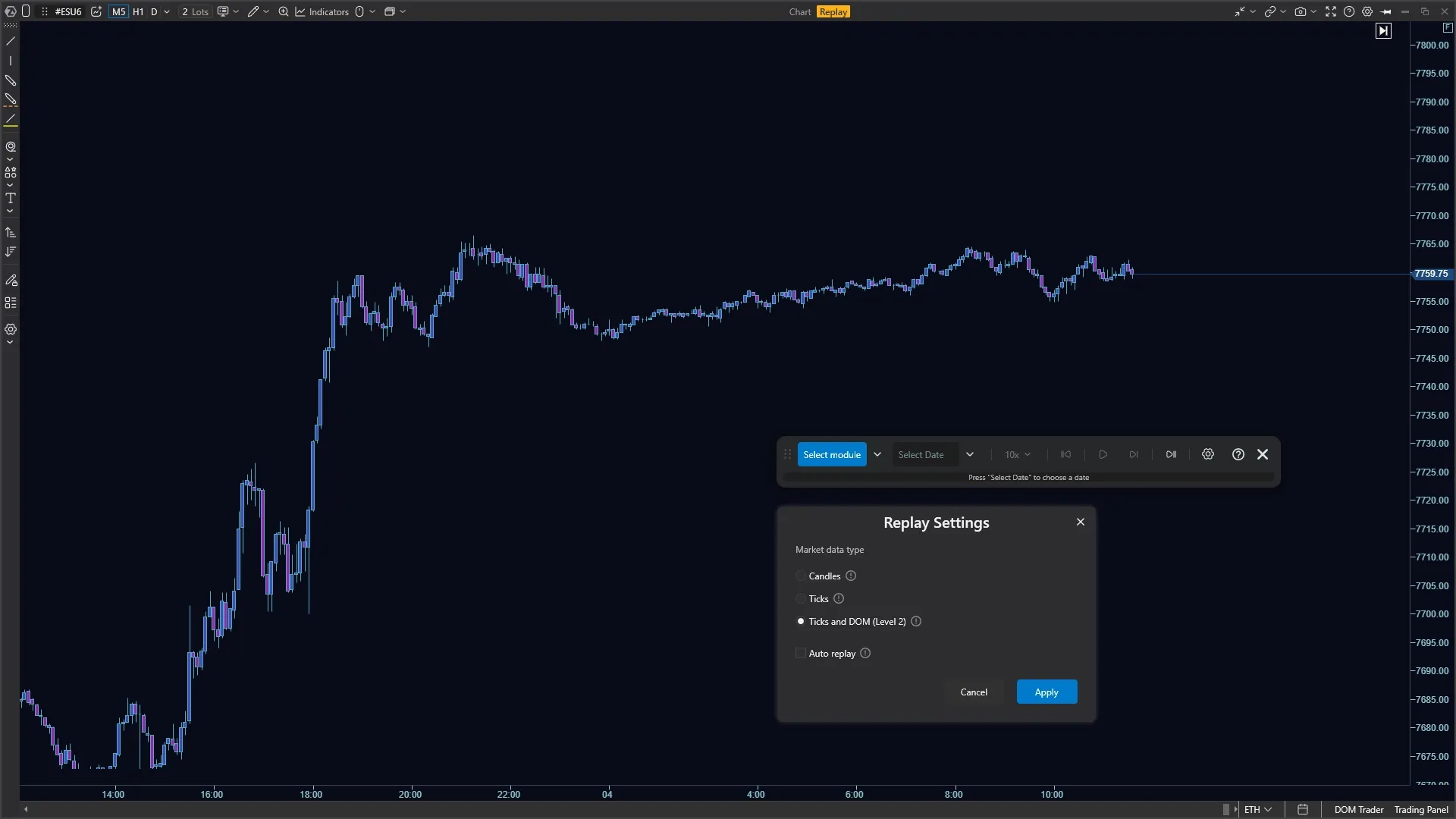
Maximum speed now depends on the data type: 1000x for candles, 100x for ticks, and 10x for ticks with DOM. The 2x preset is back, and 20x has been added.
dxFeed instruments that are not in the ATAS database can now be replayed in candle mode. Tick modes are not available for them, and date and period selection is limited to the available history.
Anchored Volume Profile can be drawn during Replay.
If Replay automatically switches to candle mode, a notification appears.
Player buttons have a new design: the active step is highlighted on hover even before it is selected, and icons, dropdowns, and separators are updated.
While the Replay DOM is empty, market orders are filled at the last displayed prices.
Only one order from an OCO pair is executed. The second one is canceled if the first one was filled immediately or if a single trade touched both orders.
After Stop and Play, the DOM is displayed again on Heatmap.
During a Replay session, panels can no longer be cloned: previously, this could corrupt the window.
ATAS X:
The Replay interface has a new minimalist design.
Crypto Open Interest, Aggregated Liquidations, and Long/Short Ratio indicators are available.
Hotkeys have been added to Replay.
📺 Widgets
General updates:
Delta Divergence. A price drop in ticks is now shown with a minus sign.
ATAS X:
Forward Curve, Economic Calendar, and TradersTalk widgets added.
A new type of floating widget added.
Linked widgets are now marked with an indicator, so you can see at a glance which ones are synced with each other.
👁 Watchlist
General updates:
Bybit: the Ask qty column now shows volume instead of price. The reset button in the filter window is labeled Reset filter.
ATAS X:
The module has moved to ATAS X: presets, filters, saved lists, panel group sync, and drag-and-drop row reordering.
💼 Following Manager
General updates:
Cross-trading added: positions and orders can be copied to another instrument using symbol replacement rules, for example ES → MES.
The “Add copy group” dialog has been reworked.
After a simulator account reset, statistics start over, and Copy Trading with hedging no longer counts volume copied before the reset.
📂 Trading Journal
General updates:
A screenshot link can be attached to a trade. The image opens for preview right in ATAS.
Trade Info shows the correct ROI for futures and inverse contracts.
Filters are set to “All” by default.
Filter values and widget headers update when the language changes.
Collecting data in statistics no longer freezes after the computer wakes from sleep.
Each component of a partially filled Bybit order now appears in trade history and statistics. Binance trades for different symbols with the same number are no longer lost, and saved statistics are converted automatically.
The Trading Activity table and commission settings have been added.
🤖 API
General updates:
Third-party developers can create indicators for Heatmap, SmartDOM columns and Watchlist, modules (panels in ATAS and widgets in ATAS X), and connectors. Ultra only.
Custom indicators now have controlled access to the file cache: they save and read their own cache without specifying arbitrary file system paths.
AI Connect: ready-made Skills for AI agents have appeared: “Indicator setup”, “Chart markup”, “Day Map”, and “Active Contract”. The agent checks the version and updates an outdated one. The Skills tab shows skill cards and their versions from
metadata.version; the version is tied to the skill, not the agent.API documentation updated.
🔗 Connectors
General updates:
The connection list and provider selection have been reworked: search and favorites have been added. Connector settings are now split into “Basic” and “Advanced” tabs. You can select the account type and server or CQG gateway, and the connection name is filled in automatically.
Order data streams can be arranged in the desired order by dragging. A warning appears before you change the market data source.
Reconnection works more reliably. After a disconnect, data flows again, and the connector no longer stays in the Connected status if the connection is actually lost. Connection failures no longer crash ATAS.
If the broker rejects credentials or your session is logged in from another device, ATAS shows a corresponding notification. The notification about losing and restoring the connection appears once, not on every reconnection attempt.
Rithmic:
Connection errors are described in clear text in the interface language.
If you move one of the OCO orders, both no longer disappear from the chart.
The warning before closing a position appears again when the connection has heartbeat problems. At that point, position data may be outdated.
Fixed the “Bad Input” connection error on computers with a non-Gregorian calendar.
dxFeed:
1 Tick charts support clusters.
The connection is more stable. Short network failures no longer cause false timeout errors, and a real connection loss is detected within 30 seconds.
On prop connections, reconnection works more reliably, and there are fewer connection errors. A canceled buy order is no longer displayed as a sell order.
The order book for stocks trading on multiple exchanges (NTV, EDGX, ARCA) no longer loses orders.
The “Align to session” option has been removed. Charts open in the ETH session by default, and RTH can be selected in the sessions menu. Full order book depth is now enabled by default.
Range and Renko charts no longer break after loading additional history.
An error window no longer pops up if you reload a chart while history is loading.
History loads on computers with a non-Gregorian calendar, and API logs are written again.
CQG:
GoFlat support added.
If you disconnect during connection, your other session is no longer reset. A connection interrupted by timeout no longer blocks the next one.
The account appears once in the Accounts table. Flatten Account applies only to the account it was called for.
MT5:
Positions closed in the terminal are no longer shown in ATAS as open.
The connection window has a “How to connect” help link and a list of steps to take after installing the expert.
Data from the terminal is transmitted faster.
Interactive Brokers:
The Buy/Sell MKT button no longer gets stuck in an inactive state after reconnection.
Rejected TWS orders are shown as order errors.
IQFeed: best bid and ask are displayed correctly.
NinjaTrader: executions and order changes reach ATAS immediately. Previously, the delay reached 100 ms.
Trading Technologies: the proxy gets the password from settings. If proxy credentials are empty, ATAS reports a connection error.
Binance: if the computer clock is off, the data delay is no longer shown as false or negative. Position, leverage, and balance no longer roll back to old values after connecting. A slow or interrupted connection no longer blocks the next one, and the log is not cluttered after a connection loss.
Bybit: the position no longer rolls back to an old value after connecting.
OKX:
If the exchange rejects a stop order, ATAS shows the reason. If the API key or passphrase is incorrect, reconnection stops.
Trade history, executions, and commissions are accounted for accurately, including for partially filled orders.
If entry was interrupted, it is re-executed on the next connection; there is no need to restart ATAS.
Bitget: demo accounts connect again.
Phemex: market data connects again.
Coinglass: liquidation order history loads again on non-time-based charts.
ATAS X:
The Plus500 connector is now available in ATAS X on Windows and macOS.